Multi-tasking was made available in iOS last November, but I was surprised to learn that there is a hidden feature known as multi-tasking gestures that allows you to quickly switch between applications. Though Apple hasn't officially made multi-tasking gestures available for the masses, there is a way to turn on this iPad feature and it doesn't involve jail-breaking. You'll need an Apple computer capable of running the latest version of Xcode and you'll need to purchase and download Xcode, which will cost you $4.99. The download and installation of Xcode will take 10 or 15 minutes, but once you have all these pieces enabling multi-tasking gestures takes about 10 seconds.
Connect your iPad to Xcode and click on Use for development. Xcode will ask for your iOS developer credentials, but just click on cancel. You'll see an error message which you can ignore. Disconnect your iPad and you'll see a new option in Settings->General.
The new gestures made a big difference for me when using the iPad in the cockpit. I use Penultimate to write down clearances or record the surface weather, but then I switch to an approach chart viewed in SkyCharts Pro or some other chart viewer. Problem is, I often forget something that I've written down and before multi-tasking gestures I found myself fumbling to get back to the notes I'd written. Now I simply swipe four fingers horizontally and voila! There are my notes. Rather than having to swipe left or right, I do wish that the scrolling between the apps was implemented with a circularly linked list. That way one could just keep scrolling left or right and cycle continuously through the apps.
Apple is bound to enable this feature for everyone eventually, so you can always wait for the next release of iOS if you don't want to go through this process. Overall, I find this hack dramatically improves the iPad's usability in the cockpit. Check it out!
After some toing and froing with FedEx, I was able to get my grubby hands on the new 16GB Wifi iPad 2 I'd ordered. Here are some first impressions from un-boxing to running a few of my favorite EFB apps.
Unboxing
I decided on the non-3G version and the smaller size, based on my iPad 1 experience. I loaded a bunch of aviation charts and assorted junk (although no music files or videos) on my 32Gb iPad 1 and found that barely used 7Gb of space. And since I have the GNS 5870 MFI Bluetooth GPS Receiver, there was no need for the self-contained GPS in the 3G models. I know some readers have the 3G iPad 1 and like the built-in GPS, but for me the extra $130 for that option wasn't in my budget.
Necessity is the ...
Physically, the iPad 2 is noticeably thinner and lighter. This creates some issues with the currently available kneeboard solutions. I found the iPad 2 is just enough smaller and thinner that it slides around inside the iPro Aviator. I believe it could be made to work with some strategically placed padding, such as foam weatherstripping. Adding a semi-rigid case adds some bulk and helps reduce the looseness, though sadly these don't come with a screen protector like the iPad 1 cases did.
Foam Addition to iPro Aviator Kneeboard
The thinner and smaller size creates the same problems with for the Tietco kneeboard, which is what I tend to use due to it's lighter weight. Again, some creative modifications with weatherstripping and zip-ties seems to create adequate holding power. Again, the semi-ridgid gel case helps reduce the looseness.
Custom Foam Spacer (secured with zip-tie)
While the new screen may not be the retina display everyone was hoping for, it seems a bit brighter than the iPad 1 screen. Or maybe that's because I have a screen protector on my iPad 1 and not on the iPad 2 (they are currently backordered).
Semi-rigid Clear Case
Setting Up
Say what you will about Apple being the new evil empire (and there is evidence this is becoming the case), but the iPad 2 setup was the height of simplicity. I just plugged it into my Macbook, registered the unit with iTunes, and then selected to restore a backup of my iPad 1 contents. In under 4 minutes, everything was complete and ready to rock.
ForeFlight required me to re-download charts, but was noticeably faster than the old iPad: 39 charts took under 8 minutes (I didn't actually time it). Downloading charts into SkyCharts Pro also seemed much faster.
Data for all my other apps appeared as they did on the iPad 1. No muss, no fuss.
Speed Impressions
Everything seems to happen a lot faster on the iPad 2, probably due to twice the amount CPU cache and a faster graphics chipset. A simple example is the auto-screen rotation: Turn the iPad 2 and the screen just snaps into the new orientation instead of the slight delay seen with the iPad 1. Scrolling around in a VFR chart with either ForeFlight or SkyCharts Pro is very, very fast. The real litmus test for me was scrolling through PDF documents in GoodReader. Open a big document like the FAA's Advanced Avionics Handbook and the pages are rendered almost as fast as you can scroll. There's a slight delay rendering pages with lots of graphics, but the overall speed increase is a big step forward.
More to Come
The weather here has not be very conducive to flying, but as soon as I can get airborne I'll post my impressions of the iPad 2 in flight. Stay tuned.
When the iPad was first released, the only way to use it with a bluetooth GPS appeared to involve jailbreaking and that wasn't something I was keen on doing. Ten months later there are at least two GPS devices for use with the iPad, both claim to be Apple-approved, and neither require jailbreaking. One is the Bad Elf GPS receiver and another is the GNS 5870. Both sell for around $100USD and both are said to work with the two electronic flight bag (EFB) apps that I use most often - ForeFlight Mobile HD (FFM) and Skycharts Pro (SCP). Saving my pennies and skipping soy lattes at Peet's Coffee finally paid off in the form of a new bluetooth GPS receiver for use with my non-3G iPad.
It should go without saying, but I'll say it anyway: The combination of any GPS receiver with an iPad or any other off-the-shelf computer hardware is no substitute for a TSO C125 or C145/146 IFR-certified GPS receiver. Anyone who claims otherwise needs professional help. I decided against Bad Elf since it plugs into the iPad's 30-pin connector, a location that would seem to be a disadvantage in two respects. A small unit plugged into the iPad would seem to be susceptible damage for an iPad kneeboard arrangement. And with the iPad on one's lap or knee while seated in an aircraft, I can't imagine the Bad Elf is going to offer optimal GPS satellite reception. Siting outside, walking, or hiking, Bad Elf would probably perform just fine. Inside an aluminum, quasi-Faraday cage, not so much.
Satellites in Sight
The GNS 5870 is a small 32 channel bluetooth GPS receiver made by Global Navigation Systems GmbH. Physically it is a little bigger than a box of matches and weighs less than a set of car keys. Since it connects to the iPad via bluetooth, you can mount the receiver where satellite reception is likely to be best, such as near the windscreen. The unit is powered by a Li-Ion battery that is purported to last at least 10 hours. It comes with a mini-USB cable and USB cigarette power adapter. I wondered if routing the cable in an aircraft might be a bit of a challenge, but it turned out to be workable. The size of the cigarette adapter means it protrudes quite a bit, making Cessna's design decision to put the cabin power plug right above the fuel selector seem dubious, at best.
One issue some users have with the GNS 5870 has to do with the power switch, which is an unconventional touch sensor. Holding the unit with the display on on your left, turn it on by swiping your finger upward across the face of the display. To turn it off, swipe your finger downward. At first I had a bit of trouble turning the unit off, but discovered that a light touch and a relatively slow swiping motion was all that was required. It's easy to inadvertently turn the unit on and drain the battery, though I found a simple solution which I'll describe later. I'll second the observation others have made: A conventional power switch would have been a wiser choice, though not nearly as cool.
Developing Attachments
Once the unit is turned on, go to the iPad's Settings, ensure that bluetooth is enabled, and connect to the device. After putting my iPad to sleep during a fuel stop, I found that the bluetooth connection had been lost. I had to access the bluetooth Settings again to reconect the GNS 5870. This wasn't a repeatable problem. Hmm ... Otherwise, I found I could switch between apps on the iPad without disturbing the bluetooth connection.
There are several options for mounting the GNS 5870, but to avoid running afoul of FAA STC requirements you'll probably want something temporary like velcro. Since I fly in a variety of aircraft, my mounting solution is museum putty. Just a small bit of putty on the unit will temporarily and securely adhere it to most any surface. I used to recommend a putty product that Garmin marketed, but they seem to have discontinued it. No worries because the museum putty is less expensive that what Garmin used to sell - surprise!
To keep the putty from sticking to the inside of my flight bag, a wrapper of baking parchment (not to be confused with wax paper) works nicely. The putty doesn't stick to the parchment and it also acts as a wrapper that helps keep the device from being turned on by accident while it's stored in my flight bag.
Useful and Reasonably Accurate
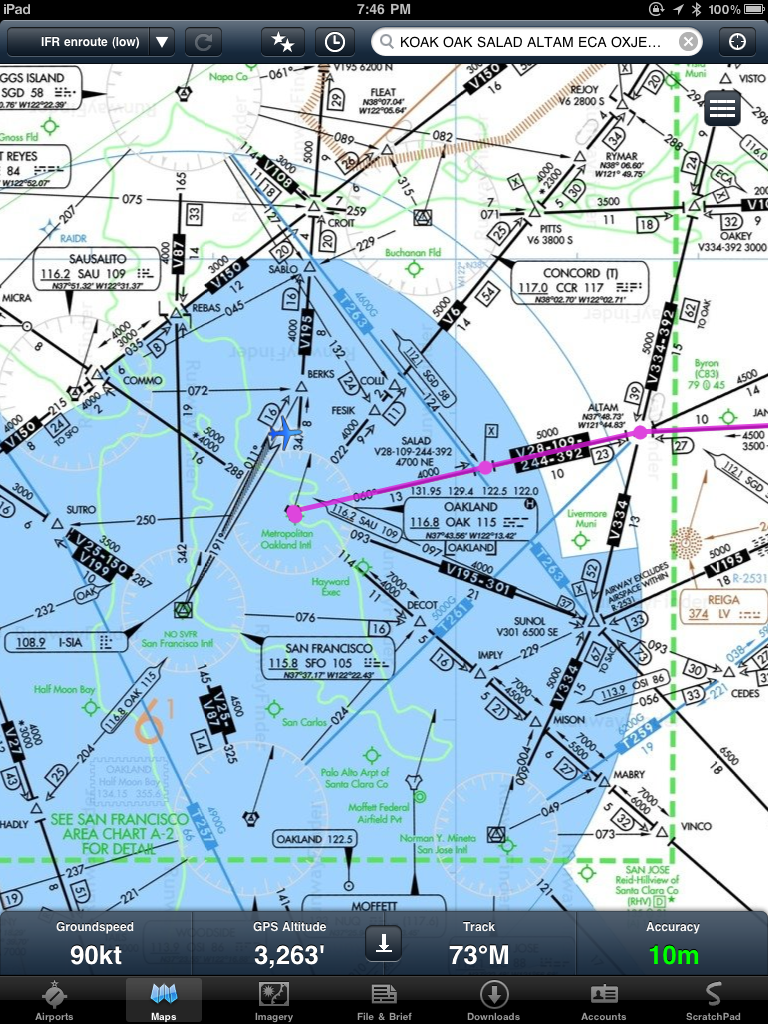
I tried the GNS 5870 with both FFM and SCP with good results. Headed down SF Bay on a flight from Oakland to Monterey, the FFM display showed 10 meter accuracy and both apps displayed ground speed and current track readouts that closely or exactly matched the values shown on the G1000 multi-function display (MFD) and primary flight display (PFD).
In the examples below, we were being vectored and then were told to proceed direct KNUQ which is why the G1000 course line and the FFM course line are not coincident.
G1000 MFD, Track Up
ForeFlight Mobile HD, North Up
Skycharts Pro offers the ability to display either North Up or Track Up and also provides the distance and bearing to the airport nearest to your current position, though bigger numbers would be easier on my aging eyes.
Skycharts Pro, North Up
Skycharts Pro, Track Up
The main advantage of the GNS 5870 is keeping your place on an en route chart displayed on an iPad. Neither FFM or SCP provide geo-referenced terminal procedures or airport diagrams, but both apps provide a subset of features you'd expect from a hand-held GPS receiver. SCP goes the extra mile and provides both desired track and current track as well as distance and time to the next waypoint. Neither app provides turn anticipation, a way to suspend waypoint sequencing, nor a way to define and display holding patterns.
Just as an experiment, I entered some of the waypoints that define the SCK RNAV (GPS) RWY 29R approach and found the GNS 5870's positional accuracy was quite good. The distance to the current waypoint actually matched the G1000 exactly, there was just a time lag between my taking the photo of the MFD and the iPad screen shot.
Both of these EFB apps display the GPS navigation data at the bottom of the iPad's screen and with the iPad in your lap you'll need to be vigilant about increased head-down time. Though the ground speed, track and GPS-derived altitude seem pretty accurate, I can't imagine using these displays to actually control an aircraft and I'm sure the developers (and their lawyers) would concur.
Conclusions
The GNS 5870 works well enough to make me consider trying one of the newer, lightweight RAM yoke mounts for the iPad to help ameliorate head-down tendencies. Guess I'll have to save more pennies and forego more soy lattes. The bottom line is that while this sort of GPS solution could help you avoid class bravo or visually acquire a unfamiliar airport, finding a runway at the end of an instrument approach is still the job for an IFR-certified GPS.
After some unexpected manufacturing delays, the iPro Aviator kneeboard is now available and shipping. You may remember the metal construction iPro kneeboard, but the iPro Aviator is the second generation: It's a more affordable version constructed of plastic and it also offers some new features.
The iPro Aviator is an iPad case that you can strap to your leg, just like a regular kneeboard. The iPad fits in the iPro Aviator snugly, but it can be easily removed, too. The molded plastic construction is well-made and sturdy without being too bulky or heavy. The hinged cover closes over the iPad and provides a clip for holding a pad of paper. While I've become accustomed to writing on the iPad using the app Penultimate, I recognize that this is not a natural arrangement for eveyone: Some pilots still find tired-and-true pen and paper to be the most convenient.
The hinged cover is designed so that it does not entirely cover the iPad's screen, and that allows you to open and close the cover without interfering with the aircraft's control yoke. If you don't like the cover or let's say you fly an aircraft that has a stick, the plastic hinge design allows the cover to be removed entirely. In some cockpits you may find the open cover can interfere with the other pilot or passenger.
One new feature is the built-in kickstand that folds out and allows the iPad to stand up on a flat surface. The kickstand is handy for those times when you want to use a bluetooth keyboard. It works as advertised, but its construction includes two white plastic rivets. Beware that the back side of these rivets are fairly sharp and not exactly recessed. I managed to scrape my knuckles on one of them. Good thing I carry some band-aids in my flight bag. ***Update*** The manufacturer has recognized the problem and is now polishing the sharp rivets so they are no longer pointed and sharp. ***
Like its metal predecessor, the iPro Aviator has a relatively thin elastic strap that attaches around your leg with velcro. I'd like to see the strap have longer velcro attach points since the strap was a bit too long from my legs. Perhaps pilots with a higher BMI or who have more muscle mass won't find this a problem, but I did.
***Update*** There is a loop sewn into the leg strap that is meant to be a pen/pencil holder, I just missed it. ***
I think a pen or pencil holder would be a nice addition, right about here ...
At $79.95US the iPad Aviator isn't the cheapest solution, but it is well-constructed, fits the iPad well, provides a kickstand for table top use, and offers a convenient solution for those hi-tech pilots who still prefer to take notes using pen (or pencil) and paper.
There continue to be new mounting products introduced for pilots who use the iPad as an electronic flight bag and the latest is the MyClip Thigh from TIET. The product may have an odd product name, but it's well-made and provides some unique features. Let's take a look.
Minimalist Approach
MyClip consists of a solid strap arrangement and two well-designed plastic clips. The main portions of the strap have a suede-like feel, but they have an elastic give, too. Rather than enclose the entire iPad with a case, MyClip just clips to the edges. This minimalist approach offers several advantages and one is the MyClip is very lightweight, something near and dear to my heart.
Keep Your Cool
Another advantage is that without a case, your iPad is less likely to overheat in high ambient temperatures. I've written before about the tendency for overheating to occur with Apple's folio-style case, but if you feel a bit nervous about your iPad not having a protective case and are less worried about temperature issues, rest assured that the MyClip will work over most aftermarket iPad cases or skins.
MyClip fitted over a hard-shell iPad case
Another advantage of MyClip is that if you want to view your iPad in landscape mode, you simply attach the clips on the short edges. I personally prefer portrait mode, but it's nice to have the option.
MyClip in a landscape arrangement
Bottom Line
At $39.95, the MyClip Thigh may not be as cheap as a home-made solution, but it is well made, easy-to-install, less likely to cause overheating issues, and it works right out of the box. Check it out!
The iPad has been out for about half a year now and many pilots have found the device useful, some might even say invaluable. The perfect cockpit device has yet to be produced and clearly each pilot's personal preference will determine whether they continue to use paper charts or trust a stream of electrons. The iPad may not be perfect, but it offers numerous advantages for pilots and even more for flight instructors. Here's a round up of some apps, gadgets, procedures, and tricks that can help you harness the power of the iPad.
Head in the Clouds
Whether you're using DUAT, DUATS, ForeFlight, or AOPA's Flight Planner, getting a preflight weather briefing on the iPad is a no-brainer. Of course you'll need a 3G iPad with 3G coverage or WiFi access, but you can access almost all the data you could possibly want. For prolonged ground sessions, I've taken to using a kickstand for my iPad along with the battery-powered Apple Wireless Keyboard. This allows me to use my favorite Dvorak keyboard mapping, even though the iPad's touch keyboard layouts still don't support Dvorak.
Regular readers may recall the iPad kneeboard I created by modifying an aftermarket plastic case. Ten minutes with a Dremel tool and I had two slots through which I threaded an elastic band from an old kneeboard. Surprisingly, the price of this case has dropped to a mere $11.99 and now includes a clip-on kickstand.
Another iPad kneeboard solution I just learned about is the HandHolder for the iPad. While it costs a bit more, apparently it can be had with a longer strap for kneeboard use. What's more, this solution doesn't involve a case which may reduce the likelihood of the iPad overheating in hot weather.
I haven't used the HandHolder, but you can read nice review on Rick Felty's blog.
Charts 'n Stuff
I find the iPad as electronic flight bag works very well, in spite of some short-comings. I continue to be a big fan of SkyCharts Pro, which recently added Fly charts containing the reverse side of many VFR Terminal Area Charts that depict landmarks and VFR transitions around and through Class Bravo airspace. Compare a $19.99 one-time purchase price with subscriptions that can cost several times that per year and SkyCharts Pro is a most excellent value. Still, I'd like to see some SkyCharts Pro enhancements like:
Double-tapping on MOAs and prohibited/restricted airspace to reveal details
A method for measuring between arbitrary points on a chart
Separate buttons for selecting the type of chart (rather than one button that scrolls through all chart types)
The ability to store and recall frequently used routes
ForeFlight is a big contender in the EFB app market, though I use it more for preflight briefings and filing flight plans than I do in the cockpit. Compared to SkyCharts Pro's chart-based tap interface, locating and displaying terminal procedures with ForeFlight is convoluted enough that I tend to lose interest.
Jeppesen's new iPad app appears to let JeppView subscribers download and view terminal procedures. I've not yet used this product, but my understanding is that it doesn't currently provide a way to view en route charts. I have asked Jeppesen to provide a demo and I hope to post a review in the future.
Whatever you use as an EFB app, you'll need a plan B and a maybe even a plan C. My plan B is SkyCharts Pro on my iPhone and my plan C is a selection of a few paper charts. I use ReadyProcs to print out a small booklet of terminal procedures and airport diagrams that I can use if my two electronic solutions fail.
Take Note
Adopting the iPad as EFB has meant that I haven't used a single scrap of paper, thanks in no small measure to Penultimate, which lets you take notes using your fingertip as a pen. After some practice, it's become second nature to me. No more dropped pens or pencils, broken lead, or running out of ink. Sure my handwriting still sucks, but I have yet to misplace my right index finger.
The latest version of Penultimate offers a selection of different pen widths and several colors, making it even more useful as a miniature whiteboard in a teaching environment. Penultimate lets you create multiple notebooks and (edit 9/30/10: correcting my earlier post) allows you to name the notebooks. I like to keep a different notebook for each student, so naming each one let's me find the specific notebook I want.
Penultimate lets you email PDF versions of pages or entire notebooks. I've been using this feature to store notes and records using a web-based service called EverNote, which lets you organize most any type of data whether it be a PDF, a text file, a URL, or a sound or audio clip. This provides a valuable way to keep a record of training given without having to actually file pieces of paper.
Logging Time
LogTen for the iPhone runs just fine on the iPad, but Coradine says they'll soon release an iPad specific version of LogTen. Syncing the iPad with LogTen Pro on the Mac has gotten a lot better. And LogTen Pro makes it easy to answer weird questions like "How much night IFR time have you logged in a Bonanza in the last 120 days?" Logbook Pro now has an iPhone app that could be just the ticket for PC users, though I've not used it and cannot make any hard and fast claims.
Grace under Pressure
For weight and balance calculations, I've imported most of the Excel spreadsheets I had already developed into the Numbers application on my Mac and then transferred them to the iPad version. It works well, except there isn't anyway that I know of to protect cells in a spreadsheet you don't want changed: You best tap carefully.
The iPad can store a lot of books and I'm a big fan of the $0.99 app GoodReader for downloading, storing and viewing FAA books, practical test standards, and a lot of other useful data. A blog reader pointed me to the app iAnnotate as a way to view and annotate PDFs. I currently have several flight instructor candidates who all have decided to adopt the iPad. When it's time for them to practice teaching a lesson, we just electronically transfer the lesson plans from their iPad. iAnnotate lets me mark up each lesson plan, adding suggestions or corrections, and then email the annotated version to each instructor candidate. The word on the street is that GoodReader may soon support annotations, too.
Portable Classroom
If all the above capabilities aren't enough, consider the iPad's ability to display videos and display Keynote lectures.
In addition to weight and balance, the Numbers app is useful for tracking a pilot's training progress, using a spreadsheet based on the appropriate practical test standards.
On Schedule, In Touch
The iPad's built-in Safari web browser is useful for accessing web-based aircraft scheduling sites like AircraftClubs.com. If you have a MobileMe account, you can automatically sync your iCal calendar and AddressBook contacts, too. Throw in email capability and all you need is an administrative assistant for your portable electronic office.
Cash In
Many pilots tell me that the only checks they write these days seem to be for flight instruction. With everyone paying electronically, it was only a matter of time before an iPad solution was created. The one I've adopted is from SquareUp. The reader and account set-up is free and the transaction fees are a bit cheaper than most other services. Also, there's no monthly charge for SquareUp.
Though they had some growing pains, I finally received my Square Reader, which plugs into the audio port of all things. My first credit card transaction was last Sunday and I found swiping the card is a bit tricky. I recommend resting the iPad on a desk or table, holding the card reader with one hand and swiping the card with the other. The app then provides a space for the buyer to sign using their fingertip.
Rough Edges
Some users have reported problems with their iPad overheating in hot weather and I've seen this only once when the outside air temperature was showing 35˚C, I had left the display on continuously, and my iPad was in direct sunlight. I put the unit to sleep, moved it to the shade and redirected one of the wemac vents onto the iPad. After about 2 minutes, the iPad was back and by following some common sense precautions (turning off when not in use, keeping it out of direct sunlight, etc) it continued to operate. Folks who use the Apple iPad folio-style case seem to have more problems with overheating since that case seems to reduce conductive cooling. While flying yesterday with surface temperatures being reported at 40˚C, I had no overheating problems by following the common sense procedures described above.
Multi-tasking for the iPhone was released this past summer and iOS 4.2 slated to arrive for the iPad in November of 2010 and it can't arrive too soon. Switching between tasks like SkyCharts Pro and Penultimate will be a lot simpler with iOS 4.2. There is the option of jailbreaking your iPad and using non-approved software to provide multitasking, but I'm content to wait for an approved solution.
Must Have, For Now
For now, that's my brief round-up of must have apps and stuff for the iPad/iPhone. If you know of a cool new product you'd like to see reviewed, drop me a line.
Pilots tend to be gadget-meisters and it's not uncommon for us to obsess over headsets, watches, flashlights, kneeboards, timers, you name it. Yet there tends to be a lot of individual variation in what we do and don't like: One size usually doesn't fit all. Learning what works for you requires experimentation. Sometimes you buy and then regret, but sometimes you can learn from other pilots' experiences. I've decided to go with as little stuff as necessary and here are some thoughts on pursuing a minimalist approach by selecting essential, functional, and lightweight piloting paraphernalia.
New iPad Kneeboard
My decision to lighten my flight bag came about 3 months ago and was made possible by two factors. First is my headset of choice (Lightspeed Mach 1) is very compact and lightweight. But the most far-reaching development was my adoption of the iPad for virtually all of my charting and note-taking needs. Though there are a few back-up paper charts in my flight bag, I gave up using notepaper or a conventional kneeboard. Finding the appropriate way to mount or hold the iPad, now that's a challenge.
You may remember reading my review of Russ Sill's Tech Board, which I liked but found a bit too pricey. I ended up creating my own kneeboard solution using an aftermarket iPad case, but now Russ has announced a new iPro Aviator kneeboard that is much more cost effective and adds some new features like an integrated kickstand for tabletop viewing. The iPro Aviator goes on sale on November 1, 2010 for $79.95, but you can pre-order one for $59.95 until October 15, 2010 by clicking on this link.
Mini-Bag
After much searching for an inexpensive and minimalist iPad flight bag, I found a good fit in the Timbuktu Freestyle Notebook Messenger. It holds my headset, has a slot for my iPad, a pocket for my Xaon traffic detector, and has just enough room for the other essentials I carry. Make no mistake, this bag is small, but that challenges one to look for small accessories. And I like challenges!
Flashlight
The Petzl e+LITE LED headlamp is not cheap at about $25, but it offers a lot of performance in a small package. Weighing in at just 28 grams and taking up less space than a set of car keys allows me to carry two of these babies in my mini flight bag. The e+LITE runs for about 45 hours on two Lithium CR2032 batteries. You can wear it around your head, dangle it around your neck, or clip it to the bill of your hat or most any other thin, flat surface. It offers two brightness setting for white light and a red setting for critical night vision situations.
Vision is Everything
Speaking of vision, getting older means one's eyes are not as willing to focus as they used to, a condition known as presbyopia. Once you've entered your fourth decade, you'll start to notice the effects. One simple solution is to buy over-the-counter reading glasses, but if you also wear lenses for distant vision this can be a pain. Prescription bi-focals, tri-focals, and progressive lenses can be a help, but a pilot's need for sunglasses further complicates the situation. Carrying several pairs of glasses does not fit with the minimalist approach at all.
My solution for many years was contact lenses for distant vision with glasses worn over the contacts for near vision. The glasses were progressive readers with transition lenses that darken in bright light. This worked okay, but progressive lenses have a lot of distortion in the peripheral field. What's more, you have to tilt your head just right to focus through the part of the reader lens that is appropriate for what you're trying to read or observe.
When I read about TruFocals I was intrigued by the design and, at the same time, skeptical. TruFocals are constructed with two layers of lenses: The outer lenses are made to your prescription and the inner lenses are a silcone-filled lens that can change focus by moving a small slider located on the bridge. While they are expensive, TruFocals come with a 30-day money back guarantee. So I gave them a try and after just a couple of days, I was a believer.
I purchased TruFocals with transition lenses that darken in sunlight and that means I now wear just one pair of glasses. I carry a back-up set of glasses in my flight bag and that's it. The clarity of vision is very good with none of the peripheral distortion of progressive lenses. In flight I find I'm often spotting other aircraft that pilots I'm flying with (usually many years my junior) don't see. At night, I can adjust the focus to be just right for viewing a G1000 screen from the right seat. And no, I don't find reaching up to adjust the focus to be particularly distracting. TruFocals come in just one frame design because the silicone-filled lenses must be round. They look a bit Harry Potter-ish, but utility is more important to me than vanity. Perhaps I need a lightning bolt scar tattooed on my right temple ...
So that's a brief round-up of a few ways to go minimalist. If you have discovered ways to lighten your flight bag and simplify your flight gear, as Ross Perot said, "I'm all ears!"


 like the built-in GPS, but for me the extra $130 for that option wasn't in my budget.




+copy.jpg)


